Mouse, touch, keyboard and fullscreen, setting up your controls
Start with the device in your hands
Browser games run on laptops, desktops and phones, and the same title can feel very different depending on what you press. Some games are built around the keyboard. Others need only a click or a tap. A few accept several inputs at once. Before you judge a game, it helps to know which input it expects and whether your device offers it.
This guide looks at three games with three different setups: Crazy Alien Adventure, which mixes keys with on-screen buttons, EG Rico Orange, which accepts a click, a tap or an arrow key, and Break Free Space Station, which uses only the mouse.
As a general rule, a precise input such as a mouse suits games that ask you to look closely, while a simple tap suits games that ask you to react. Keyboards shine when a game needs several actions close together, because each finger can own one job. Knowing which of these a game leans on tells you how to sit, how to hold your device and how much attention to give your hands.
Keys and on-screen buttons in Crazy Alien Adventure
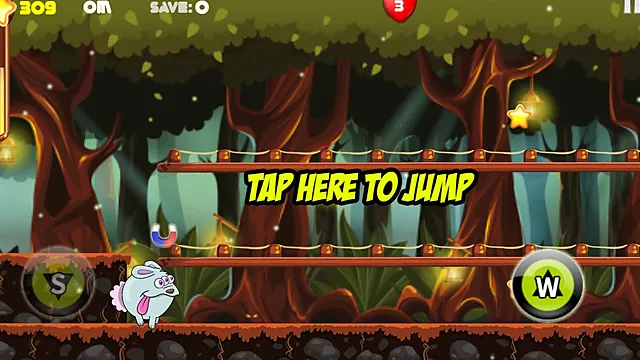
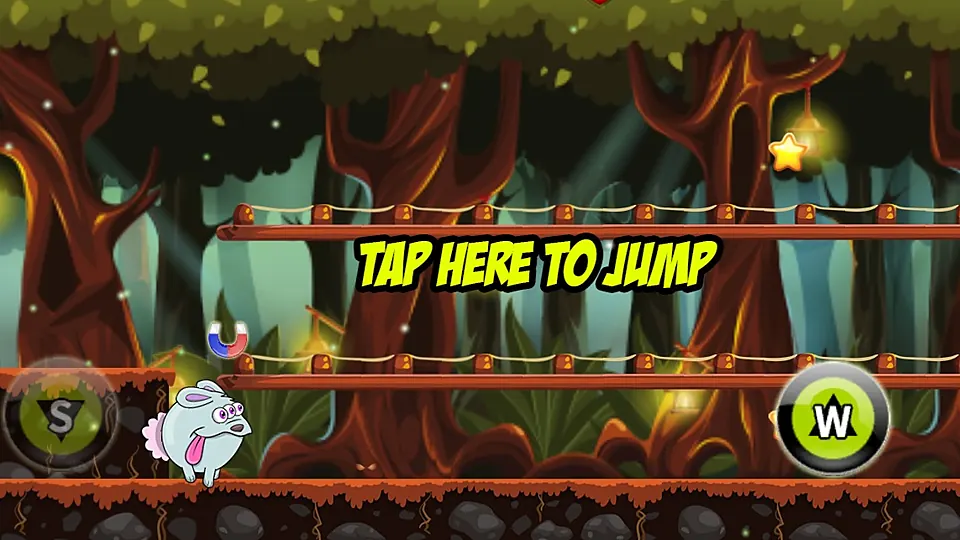
You steer a brave character through a side-view forest. Three keys cover everything. W jumps, S makes you fall and D boosts. Stars and power-ups lie along the path, and wooden stakes hold the cages shut until a boost breaks them. A star counter and a heart counter stay on screen.
On a touch screen you can tap the W button shown on screen to jump, and the on-screen W and S buttons mean the game works by touch as well as by keyboard.
Which setup suits you
- Keyboard. Keep the left hand on W, S and D. Jump early in each run so the timing becomes familiar, and save D for the wooden stakes.
- Touch. Hold the device so your thumbs reach the on-screen buttons without covering the path ahead.
Click, tap or arrow key in EG Rico Orange
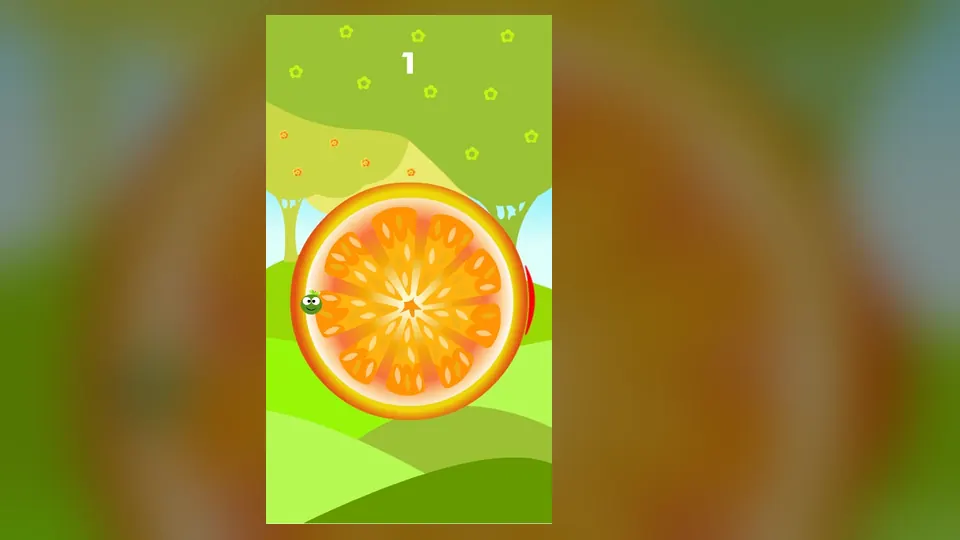
A large orange slice fills the middle of the screen, and a small green round character sits on its rim. The aim is to keep the small orange inside the big one while the pace climbs. You use a mouse click, a tap or an arrow key to put the pong behind it, and each moment you keep it in earns points.
All three inputs do the same job, so the choice is about comfort. The game's own advice is to stay with one input, click or arrow key, so that your timing becomes steady. Switching between them mid-round makes the rhythm harder to hold.
Picking your input
- On a laptop, an arrow key often feels quicker because your finger stays on the key.
- With a mouse, a click works well if your hand rests on the button between presses.
- On a phone or tablet, tap, and keep your hand relaxed. Tense, rapid tapping gets sloppy.
Mouse only in Break Free Space Station
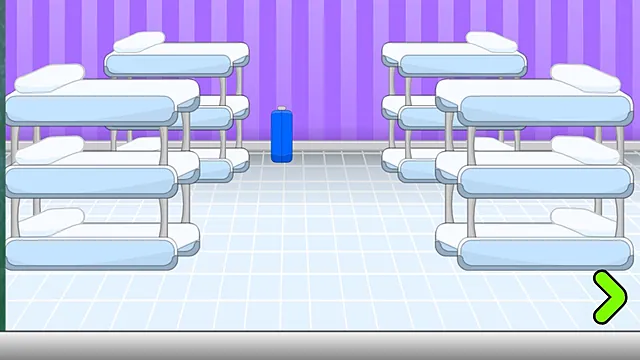
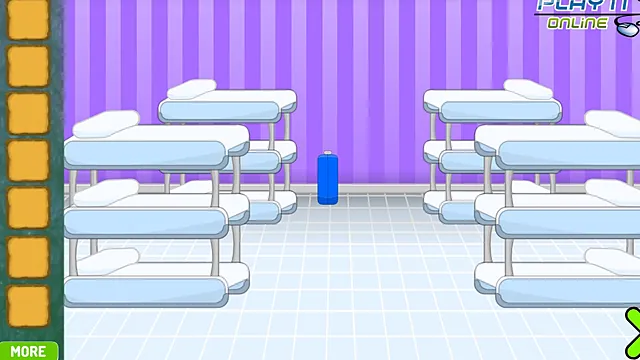
You wake up inside a space station, in a room with purple walls, bunk beds and a blue cylinder on the floor. Empty item slots line the left side of the screen. Play uses only the mouse to take items, so there are no keys to learn and nothing to aim. A click on the green arrow moves you on to see more of the station.
For a game like this, precision matters more than speed. Slow, deliberate clicks help you look at the scene one object at a time.
Quick comparison
| Game | Main input | Also works |
|---|---|---|
| Crazy Alien Adventure | W, S and D keys | On-screen buttons |
| EG Rico Orange | Click or tap | Arrow key |
| Break Free Space Station | Mouse click | Green arrow click |
When fullscreen helps
Most browsers let a game fill the whole screen, and many embedded games include a fullscreen button. It is not needed for every title, but it can make a difference in a few situations.
- Small targets. In a point-and-click room like Break Free Space Station, a larger picture makes small details easier to see and easier to click.
- Fast reading. In a runner such as Crazy Alien Adventure, a bigger view gives you more time to spot stakes and stars.
- Distractions. A full screen hides tabs and notifications, so your attention stays on the game.
On a phone, rotating the device to landscape often gives a similar benefit. These games are laid out in landscape, so turning the phone sideways gives you the full picture. Exit fullscreen with the Esc key on a computer, or by following the on-screen prompt on a touch device.
Small settings that make a difference
Check your keys before the run
If a keyboard game does not respond, click once on the game area first. The browser has to know the game, and not the address bar, should receive your key presses.
Make room for your hands
On a touch screen, keep the screen clean and your thumbs free of the controls you need to see. A buttons-on-screen layout works best when your hands rest below the action.
Try the controls early
Crazy Alien Adventure suggests trying the three keys early in a run to see how each feels. The same habit helps in any game. Spend the first seconds learning what each input does before the pace rises.
Pause when you need to
If you are unsure about a setting, pause the game before you adjust anything. Many titles have a pause button or a pause key, and a calm moment is better than a hurried fix.
Setting up for a short session
Browser games are well suited to short sittings, and a little preparation makes five spare minutes more enjoyable. Close tabs you do not need, because a busy browser can make a game stutter. Check that your device is not about to go to sleep. On a laptop, rest your wrists comfortably instead of hovering, and on a phone, prop the device against something so both thumbs are free.
If you play with a touchpad, expect clicks to feel less precise than with a mouse. Games that need small, exact clicks, such as a point-and-click room, are easier with a mouse if you have one nearby. Fast reaction games are usually fine on a touchpad, as long as you tap instead of pressing hard.
When the controls feel wrong
Input problems usually come from a handful of causes. Work through them in order before you decide a game is broken.
- Click on the game first. Keyboard input often goes nowhere until the game area has focus.
- Check the keyboard layout. Keys such as W, S and D sit in different positions on some layouts, so look at the letters and not at their place on the board.
- Reload the page. A fresh load clears most stuck states, including keys that seem to be held down.
- Try another input. If a game offers both keys and touch buttons, switch for a round and see which feels better.
- Slow down. Many control complaints are really timing complaints. A calmer rhythm often fixes them.
With the right input and a few minutes of testing, most browser games settle into a comfortable routine. Once your hands know what to do, you can spend your attention on the part that matters, which is the game itself.
FAQ
Can I play Crazy Alien Adventure on a phone?
Yes. The on-screen W and S buttons let you play by touch as well as by keyboard, and you can tap the W button to jump.
Which input is best in EG Rico Orange?
The one that feels steadiest to you. A click, a tap and an arrow key all do the same thing, so choose one and stay with it for the round.
Do I need a keyboard for Break Free Space Station?
No. The game uses only the mouse to take items and move around, so there are no keys to learn.